
Access a Shared Mailbox on Outlook for MacOS
If your organization uses Shared Mailboxes inside Office 365, you may need to access one of these special mailboxes on your Mac when using the Outlook application. Follow these steps to access the mailbox easily.
Note that you’ll need to be granted access to the shared mailbox beforehand, if you cannot find the mailbox to add and/or receive an error this is usually the issue.
- With Outlook active, navigate to the menu bar and click Tools > Accounts…
- In the Accounts window that appears, click on your existing Office 365 account underneath Mail Accounts
- Click on Delegates & Sharing and then click the Shared With Me tab and then click the + button found in the bottom-left of the window
- In the Search for a person… window, enter the email address for the shared mailbox you’re trying to add, click on the mailbox entry that appears and then click the Add button. The mailbox name should appear underneath Open these additional mailboxes
- Close the Accounts window and you should now see the mailbox listed on the left-hand side of the window. You may have to expand it by clicking the > icon
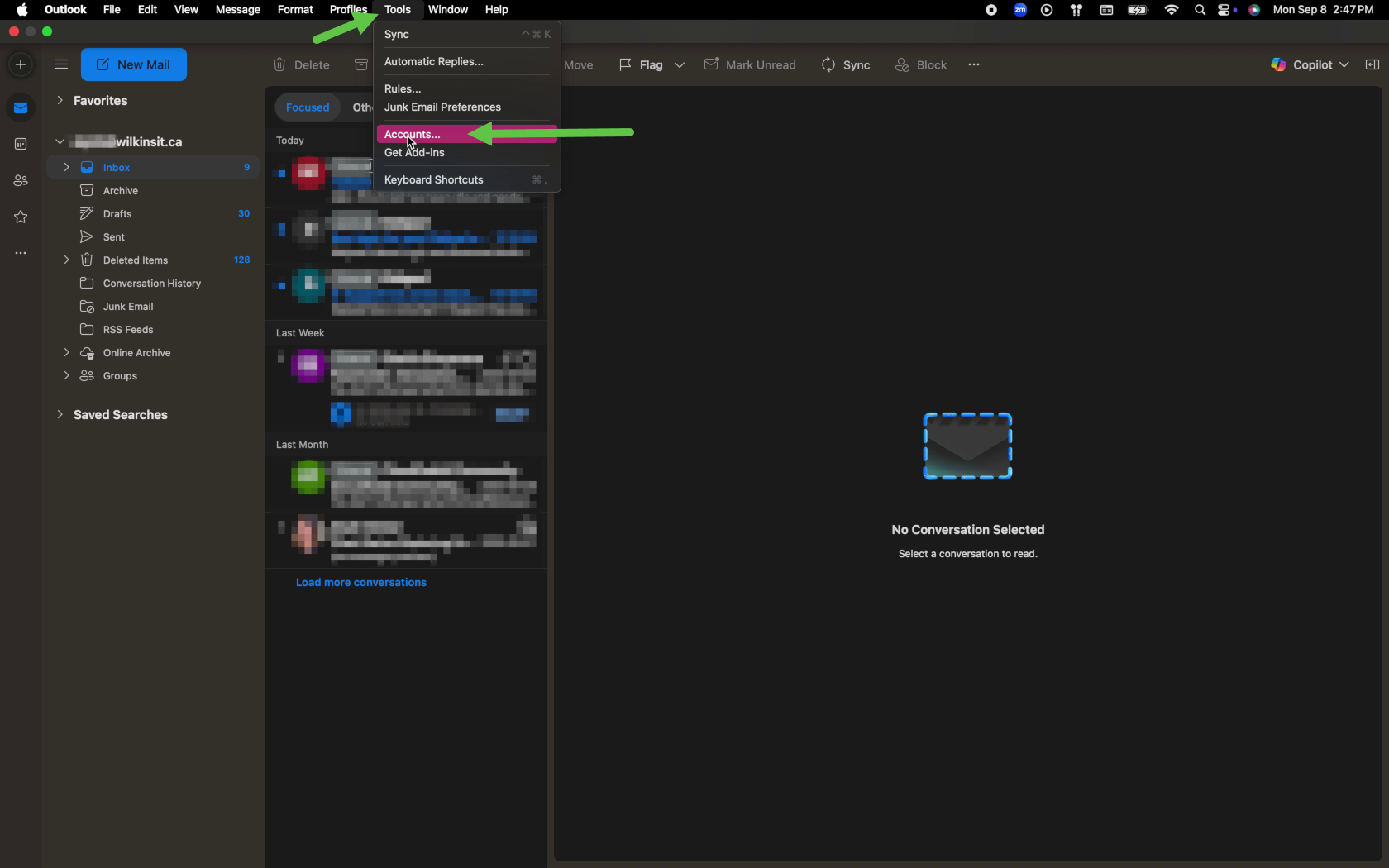
Outlook tools menu
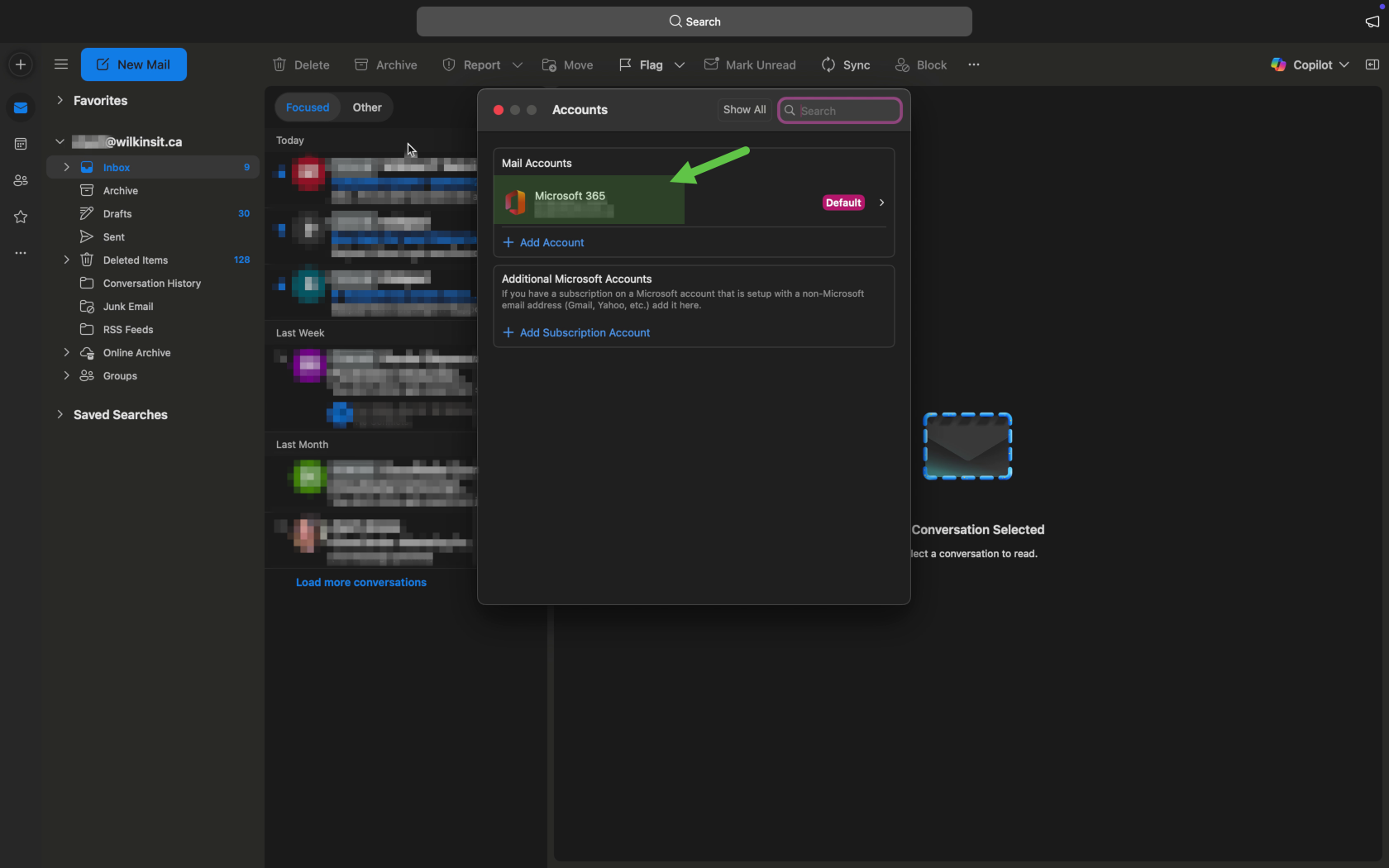
Outlook Accounts window
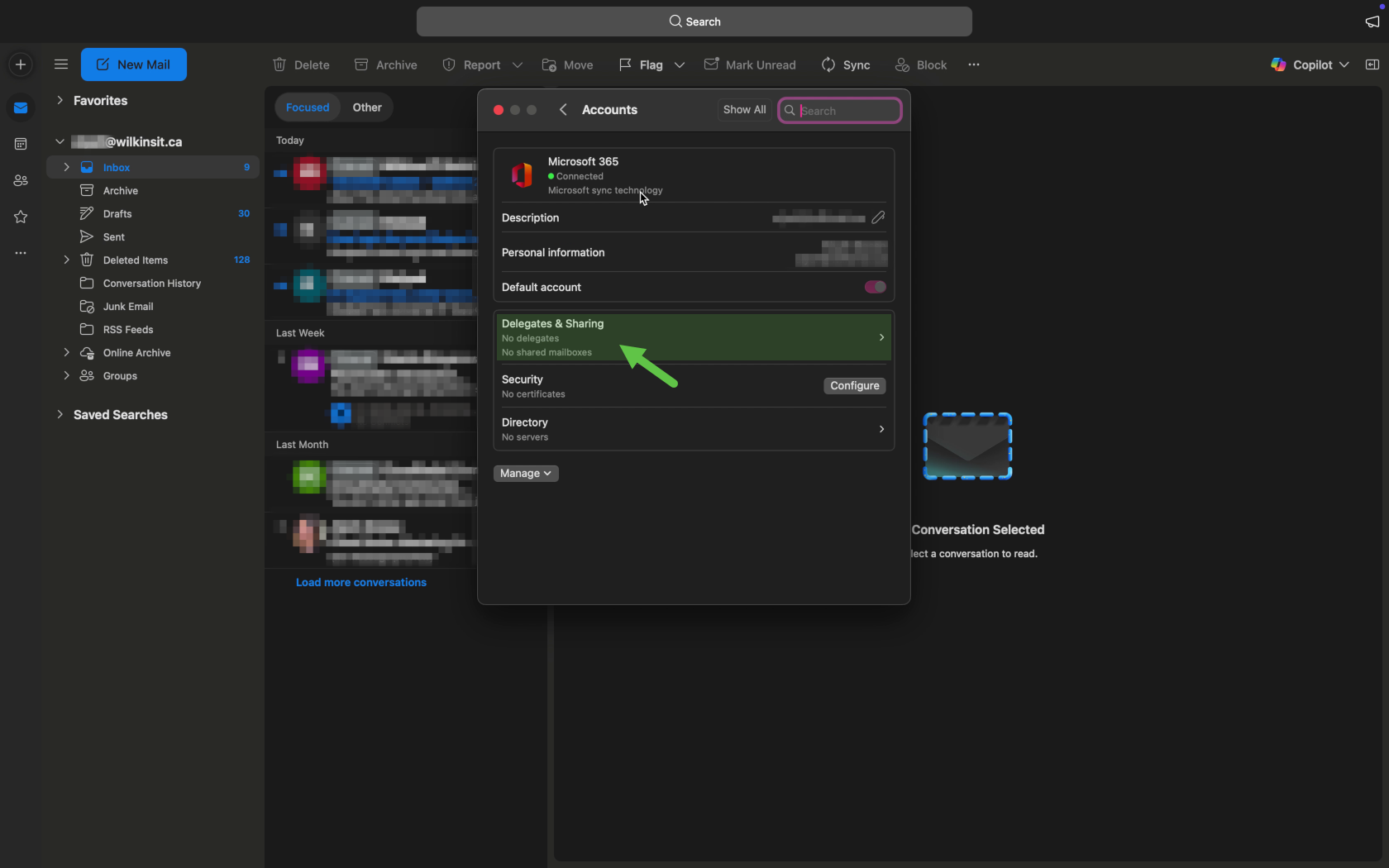
Outlook account delegates & sharing
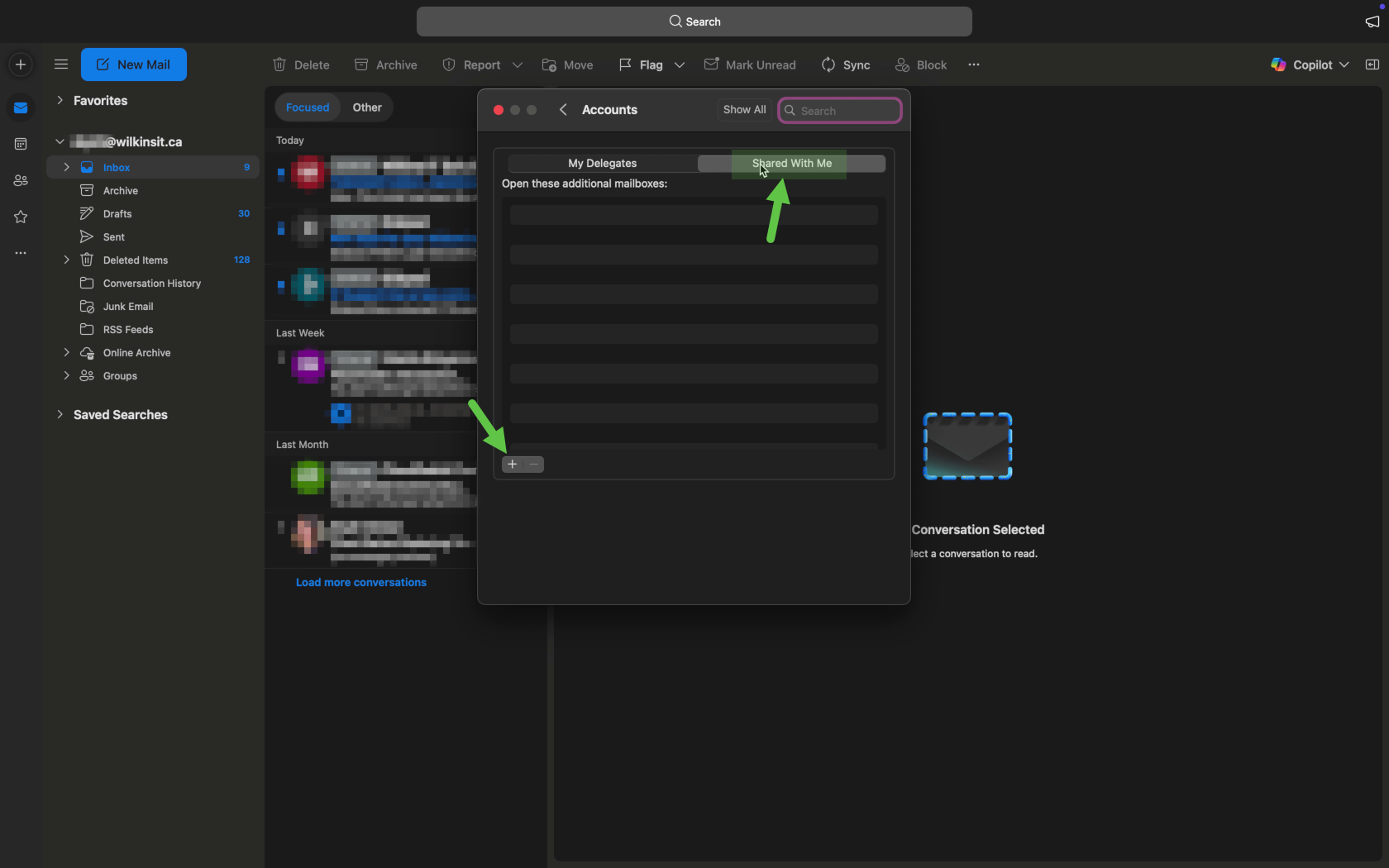
Outlook delegates Shared With Me tab
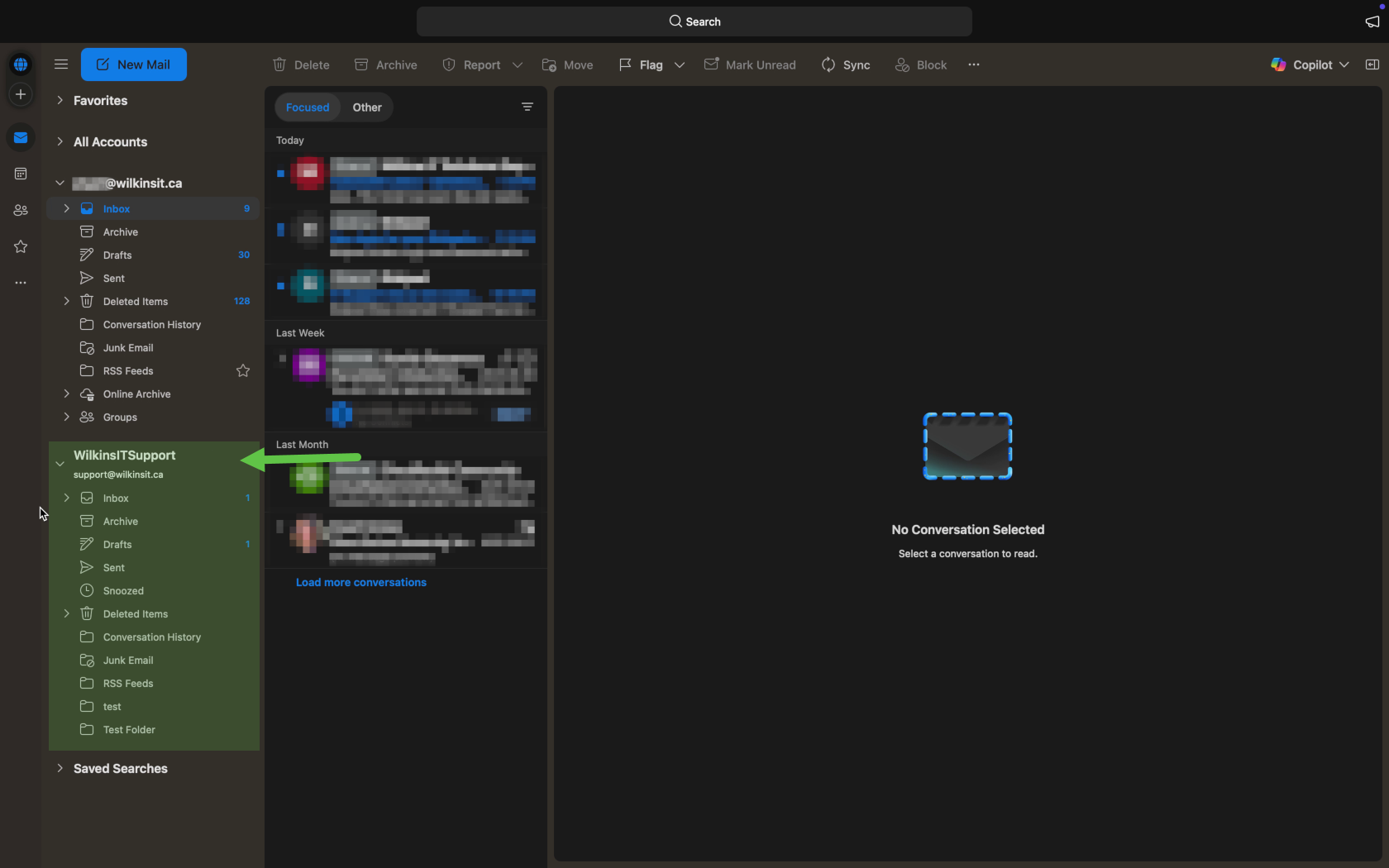
Outlook shared mailbox added
Did we miss something?
or do you want to suggest an article?