
Managing email accounts in cPanel
If you have a hosting account with us, you will have access to cPanel where you can manage your domain properly. This also gives you access to create and manage email accounts for your domain. This article will go over how you can create new email accounts.
- Login to your cPanel account. The easiest way to access your cPanel will be going to the cpanel subdomain. For example if your domain were example.com then you can navigate to cpanel.example.com to access the cPanel. If you’re not sure what your login is for your account with us, please contact us and we can provide and/or reset the password for it.
- Once you’re logged into cPanel then look under the Email section for Email Accounts and click on it
- If you want to create an email account, click the blue +Create button. If you want to make changes to an existing email account then find it in the list and click the Manage button beside it.
- If you’re creating a new account then simply fill out all the information for it including a password and click the +Create button found at the bottom of the window
Note: If you have multiple domains configured, pay special attention to the Domain drop-down list, make sure you’re creating the account under the correct domain - If you’re managing an existing account you can change the password under the Security section, update any storage limits under the Storage section, apply or remove sending/receiving restrictions under the Restrictions section and enable/disable plus addressing under the Plus Addressing section. When you’re done making changes scroll to the bottom and click the Update Email Settings button to apply the changes
- You can also completely remove the account by scrolling to the bottom and clicking Delete Email Account. This will completely erase any data in the email account so be sure you’re willing to lose that data or already have a backup somewhere
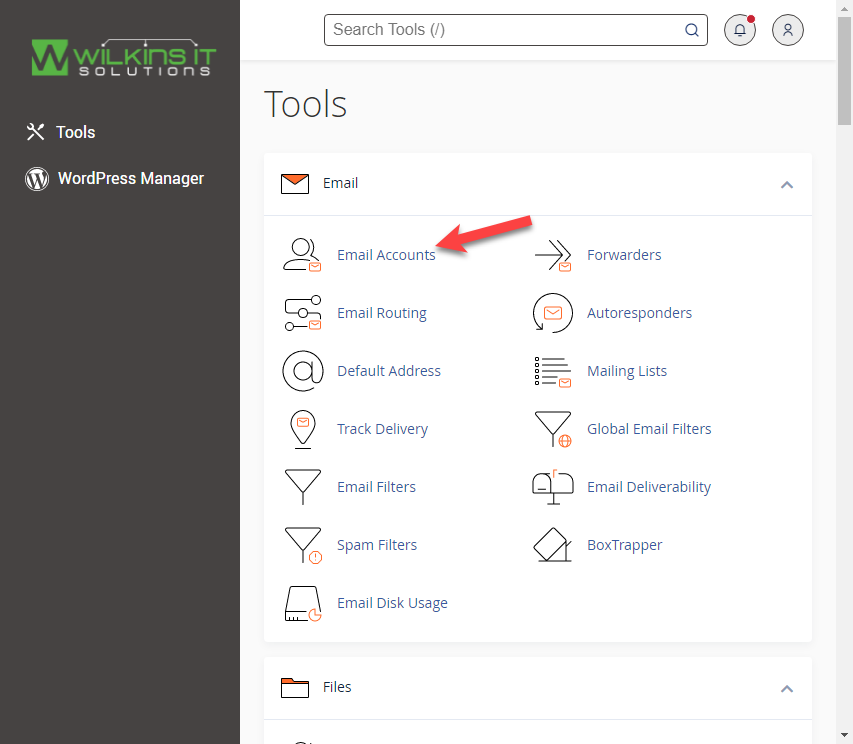
The Email Accounts item in cPanel
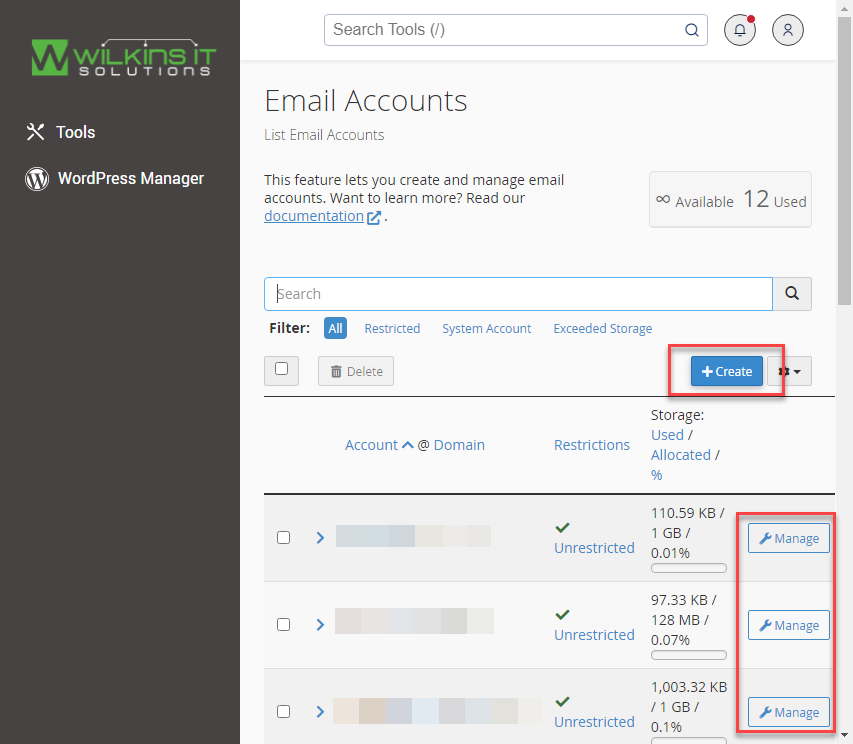
Create an account or manage an existing one
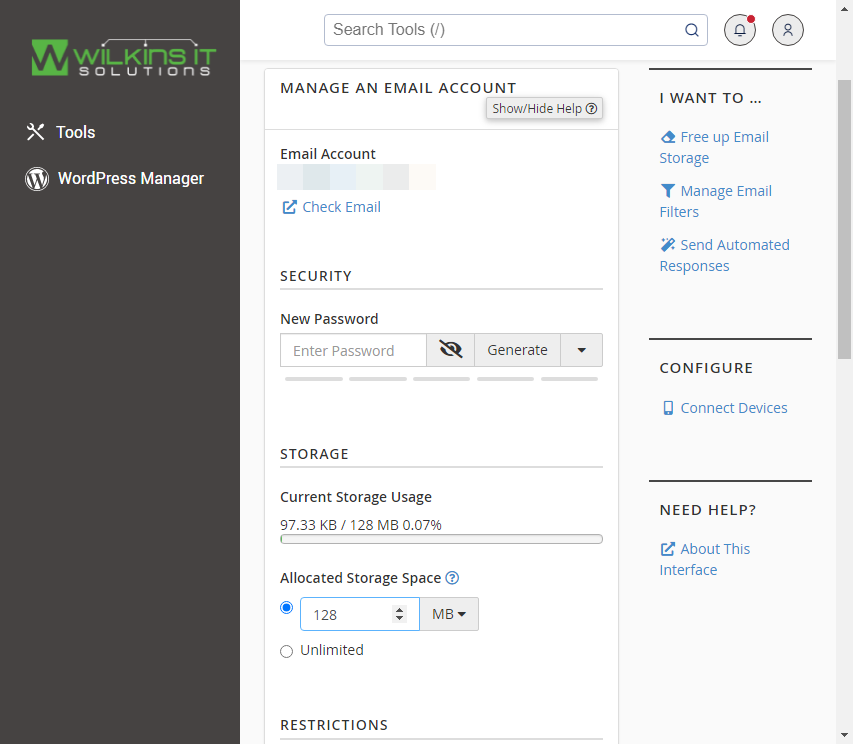
Managing an email account – security and storage
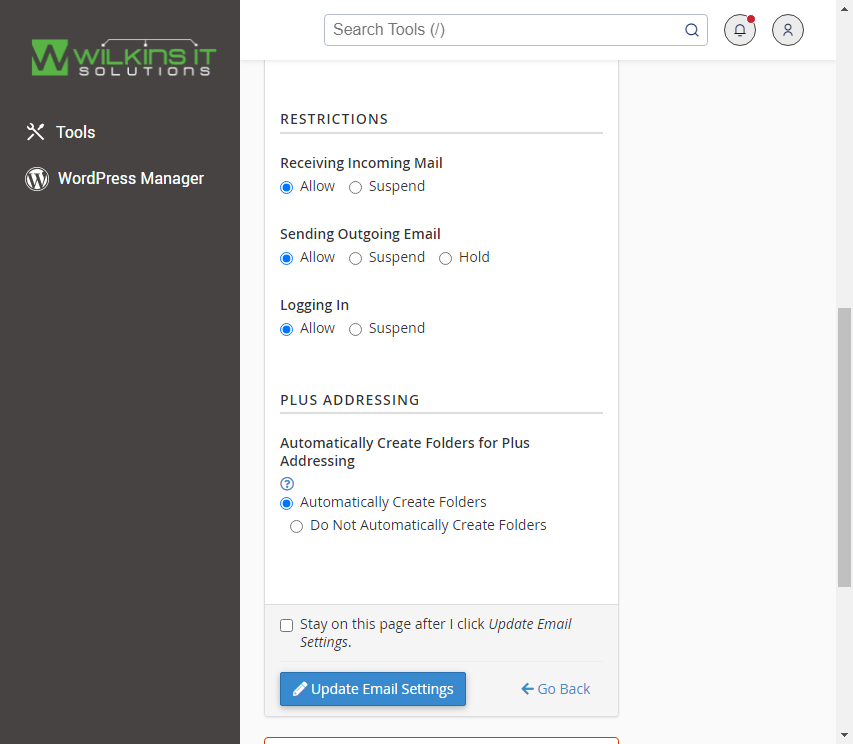
Managing an email account – restrictions and plus addressing

Managing an email account – deleting the account
Did we miss something?
or do you want to suggest an article?