
Setting up an Autoresponder in cPanel
If you’re going to be out of the office for an extended time and wish to configure automatic replies to let people know you aren’t available, you can create an Autoresponder from your hosting account. Use this article to guide you on how you can set up and configure an Autoresponder. Please note that this relates specifically to email accounts configured in your hosting account through cPanel, this does not apply to email accounts through other services such as Office 365.
- Log in to your webmail with your email credentials. In most cases you can find your webmail at webmail.mydomain.com where mydomain.com is your email domain. If you’re not sure what your webmail address is and we host your cPanel account, don’t hesitate to contact us for help
- Once you log in you should go to the default page that gives you a choice as to what webmail interface you want to use. If you don’t see a page similar to the image above, then you will have to navigate back to the cPanel Webmail Home, which is found on the left-hand side of the page when using the Roundcube interface, or along the top if you’re using the Horde interface – see the related screenshots for what to look for in this case
- From the Webmail Home page click on Autoresponders as indicated in the screenshot above. From the Autoresponders page you can create a new one by clicking on the blue Add Autoresponder button. Just fill out all the fields to configure the autoresponder to your liking, when you’re done click on Create to save and apply the autoresponder
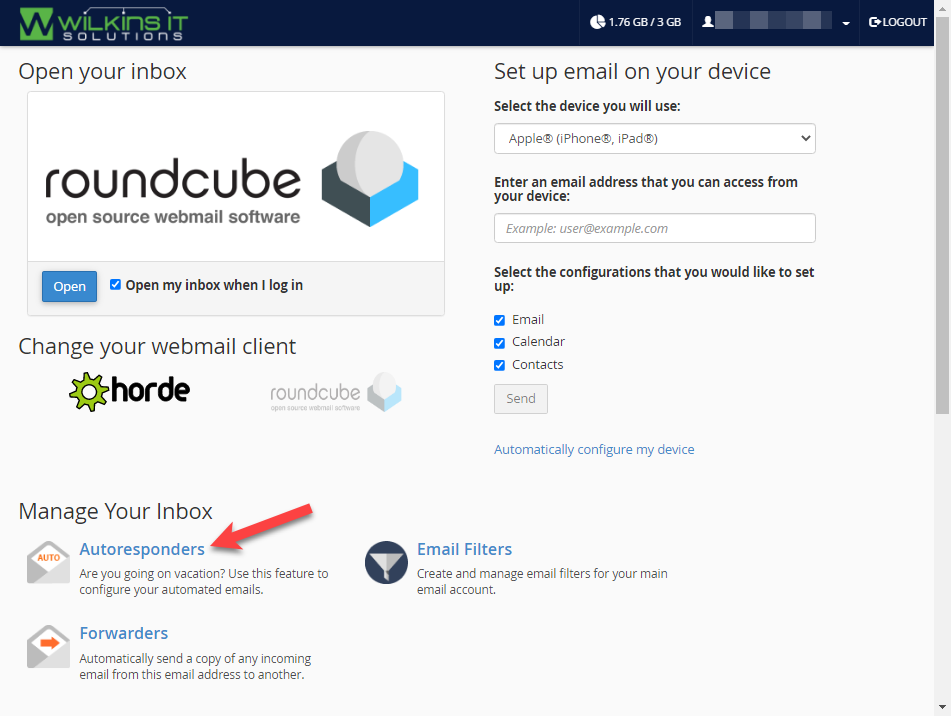
cPanel Autoresponder
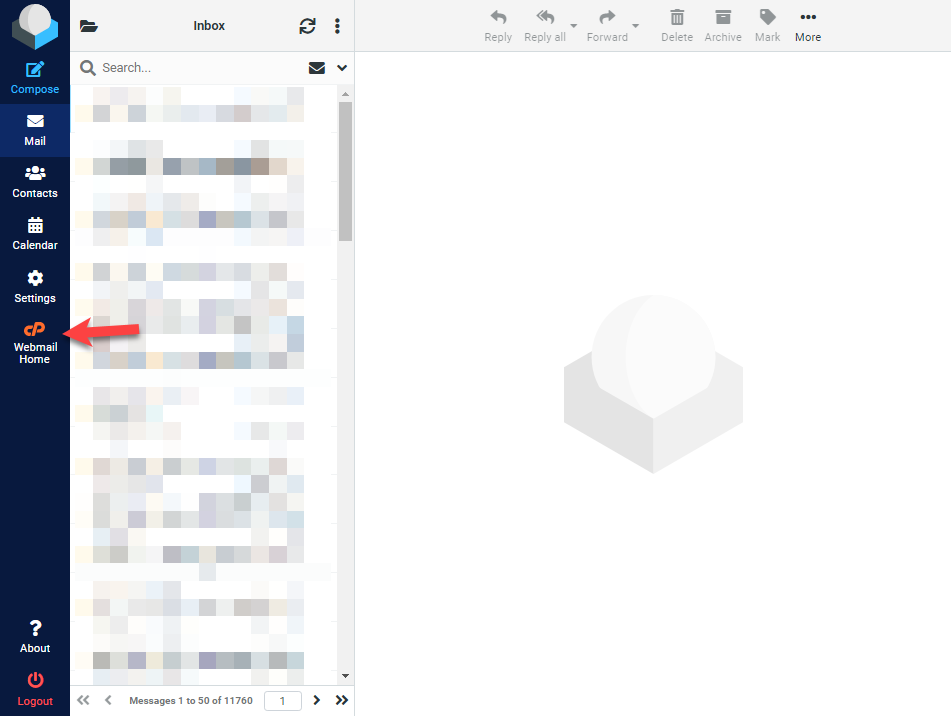
Roundcube Webmail Interface
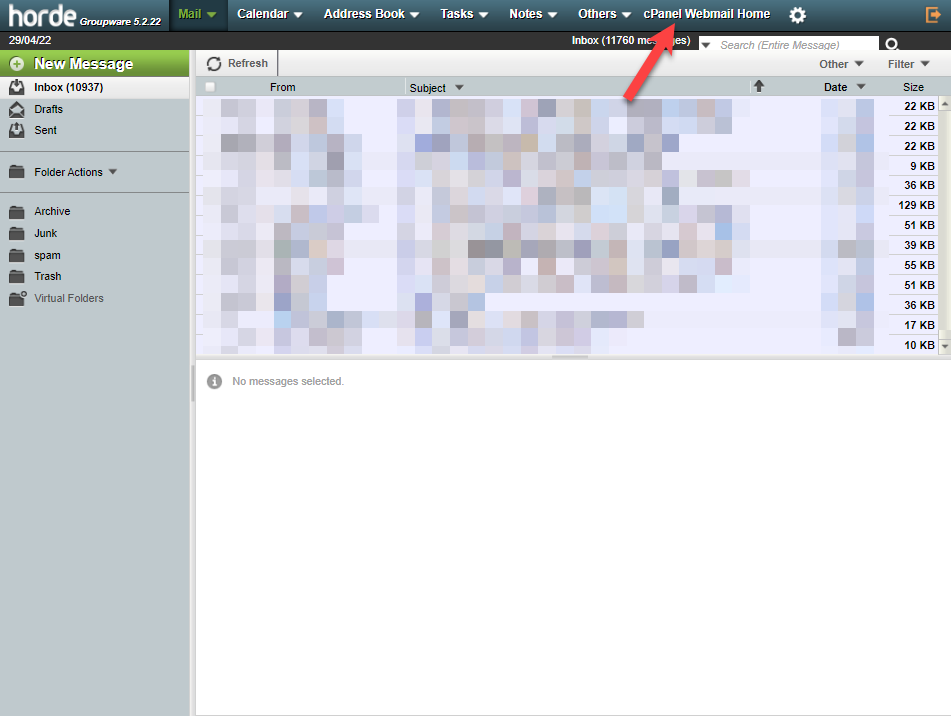
Horde Webmail Interface
That should be everything, if you set an expiry date then it will stop on that date, otherwise you may have to log back in afterwards to remove it whenever you want it to stop.
Did we miss something?
or do you want to suggest an article?